
Introduction: Exporting lists from SharePoint is a critical task for businesses managing data efficiently. If you’ve encountered the message, “To export a list, you must have a Microsoft SharePoint Foundation-compatible application,” this blog post will guide you through the process. At ShanVri Digital, we specialize in optimizing SharePoint integrations to streamline your workflows.
Understanding the Prerequisites Microsoft SharePoint Foundation-compatible applications, such as Microsoft Excel or Access, are essential for exporting SharePoint lists. These applications provide the functionality to seamlessly handle SharePoint’s data structures and formatting.
Steps to Export a SharePoint List: Follow these steps to successfully export a list from SharePoint:
1. Start from Excel
An alternative method to export data is to begin directly from Microsoft Excel. This approach works regardless of your version of Internet Explorer or Office. Follow these steps:
- Open Microsoft Excel.
- Navigate to the Data tab.
- Select Get Data > From Other Sources > From SharePoint List.
- Enter the SharePoint site URL and follow the prompts to connect and import the data.
If this method doesn’t work, proceed with the following steps.
2. Verify Application Compatibility
Ensure that you have a compatible application installed. Commonly used applications include:
- Microsoft Excel (for spreadsheets)
- Microsoft Access (for databases)
3. Access the SharePoint List
- Log in to your SharePoint site.
- Navigate to the list you want to export.
4. Export the List
- Click on the List Actions or Export option in the ribbon (varies by SharePoint version).
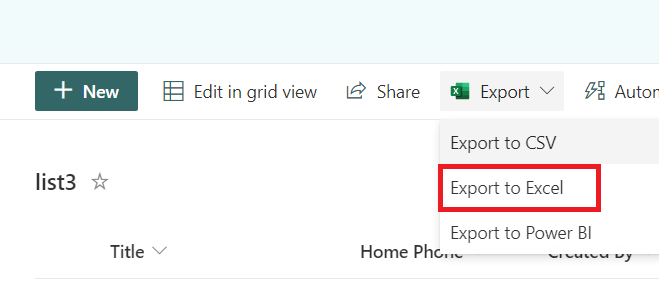
- Select Export to Excel or Export to Access, depending on your needs.
- Save the file to your local machine.
5. Handle Authentication Prompts
Some organizations use multi-factor authentication (MFA). Ensure you’re signed in with the appropriate credentials to avoid access issues.
6. Review the Exported Data
Once the data is exported, open the file in your chosen application to:
- Verify data integrity.
- Adjust formatting as needed.
Troubleshooting Common Issues
- Error: “Export to Excel is Disabled”
- Solution: Ensure the feature is enabled in SharePoint settings and that your user account has the required permissions.
- Error: “Cannot Connect to the Server”
- Solution: Verify your network connection and server status. Ensure that your SharePoint URL is correct.
- Incompatible Application Error
- Solution: Install the latest version of Microsoft Office, which includes Excel and Access.
Advanced Tips for Efficient List Exports
- Filter the Data: Apply filters in SharePoint before exporting to minimize unnecessary data.
- Use Power Automate: Automate repetitive export tasks with Microsoft Power Automate.
- Sync with OneDrive: Use OneDrive to keep your exported lists updated in real time.
Why Choose ShanVri for SharePoint Optimization? At ShanVri Digital, we ensure your SharePoint solutions are tailored to your business needs. From optimizing exports to full-scale integrations, our team of certified experts is here to help.
Conclusion Exporting lists from SharePoint doesn’t have to be a challenge. By ensuring you have the right tools and following the steps outlined above, you can efficiently manage your data. Contact ShanVri Digital today for expert guidance on SharePoint solutions and more.